EN
Try BebraTry Bebra

Help center

Answers to common questions and step-by-step setup guides.

Bebra for macOS

Installing Bebra on a Mac: the version from our website or from the Mac App Store.

  1. Download Bebra

    There are two versions for Mac. In Russia, the version from our website is more convenient: it lets you pay for your subscription with a Russian card, and Bebra isn’t available in the Russian Mac App Store. Download Bebra.dmg, open it, drag Bebra to the Applications folder and launch it from there. If macOS asks whether you’re sure you want to open an app downloaded from the internet, click Open.

    Or install Bebra from the Mac App Store (in Russia, with a temporary App Store account):

    Mac App Store
  2. Open Bebra

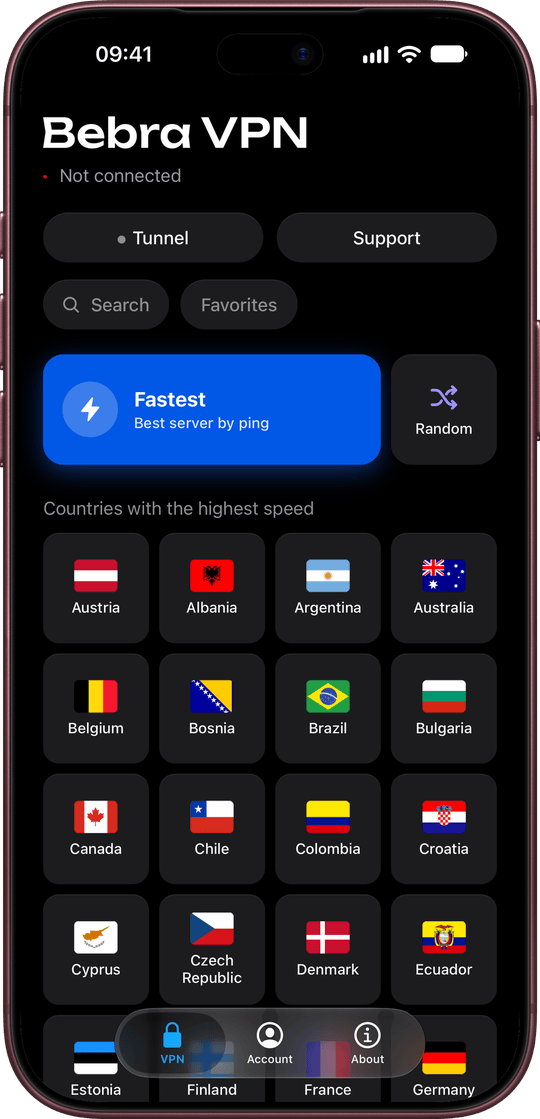
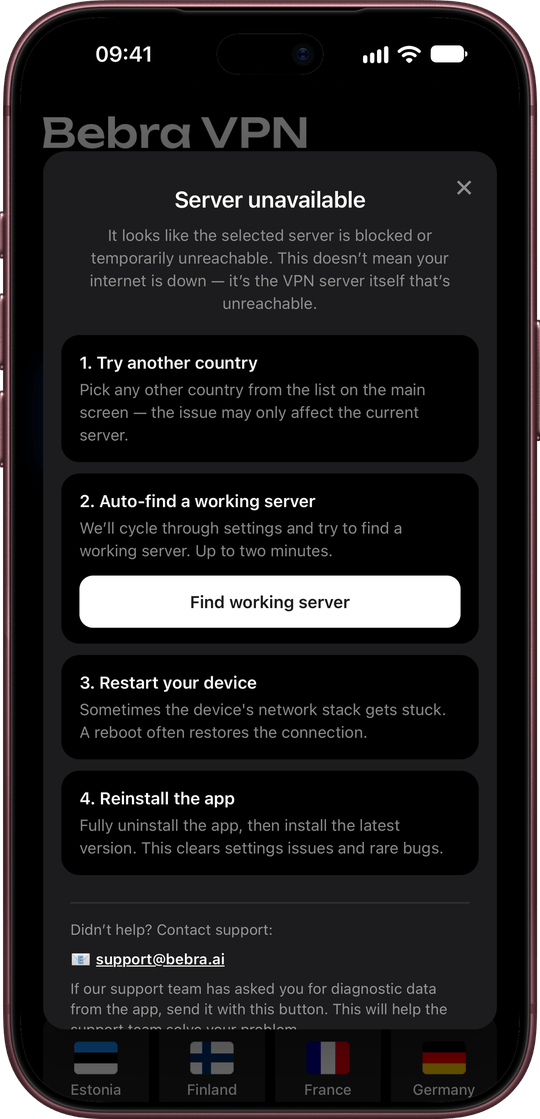
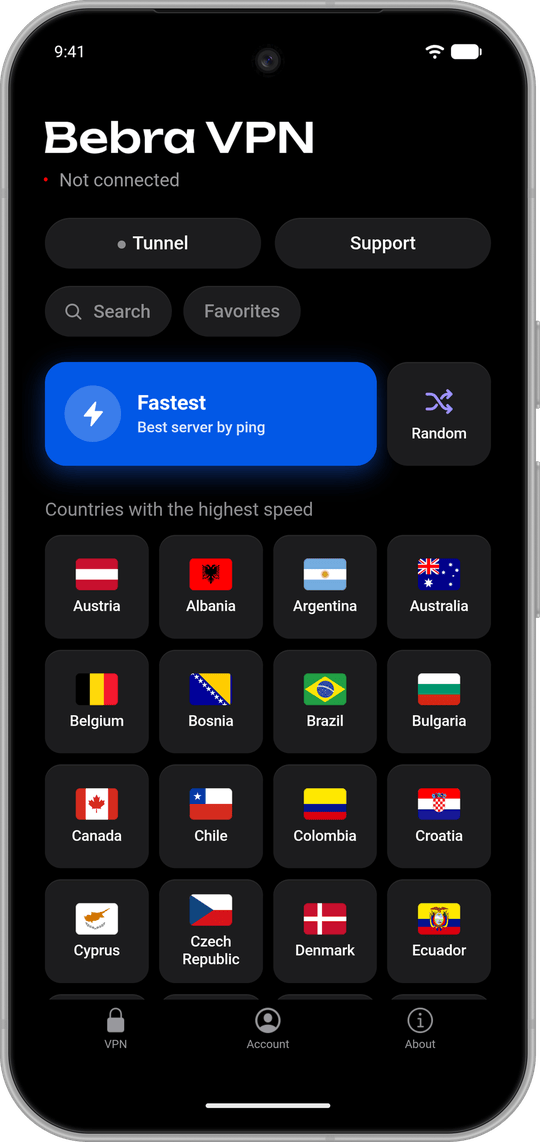
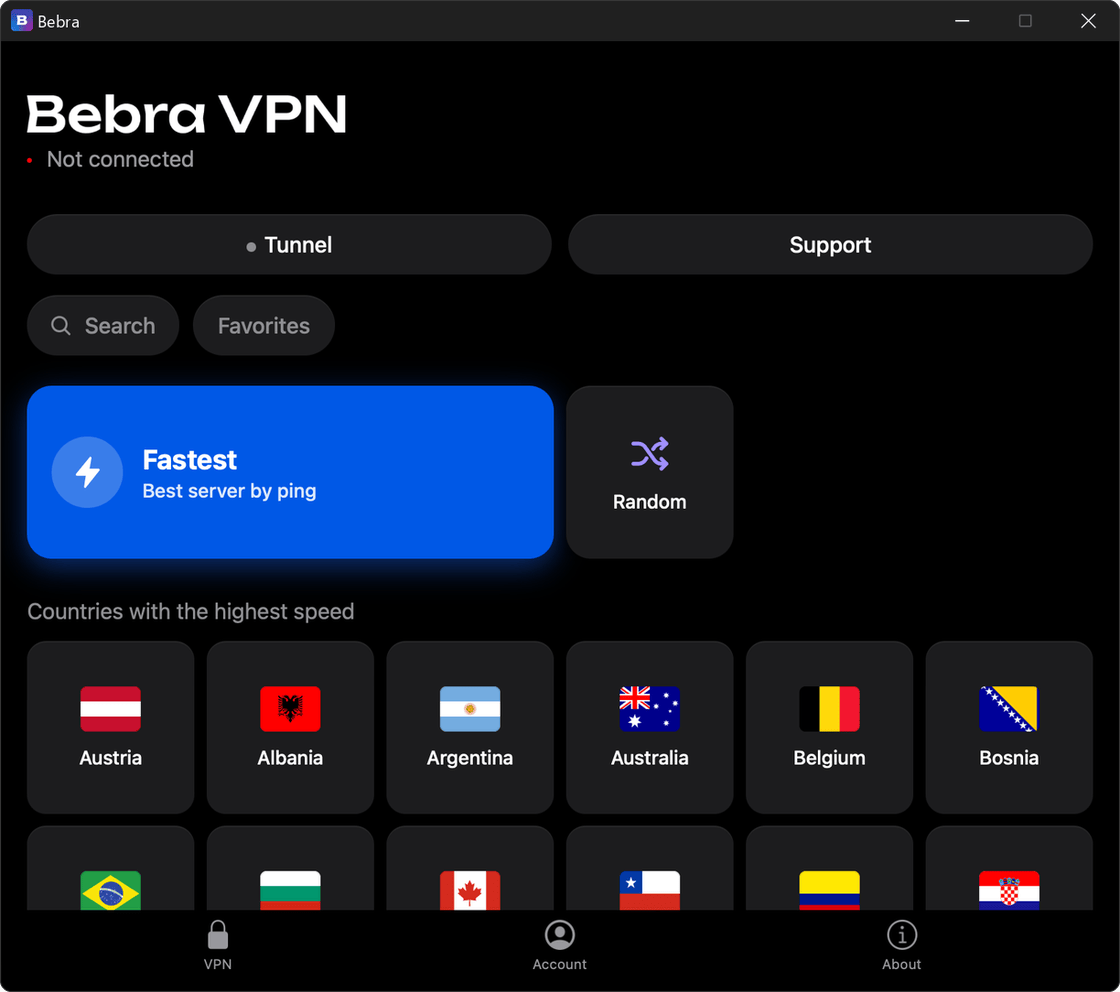
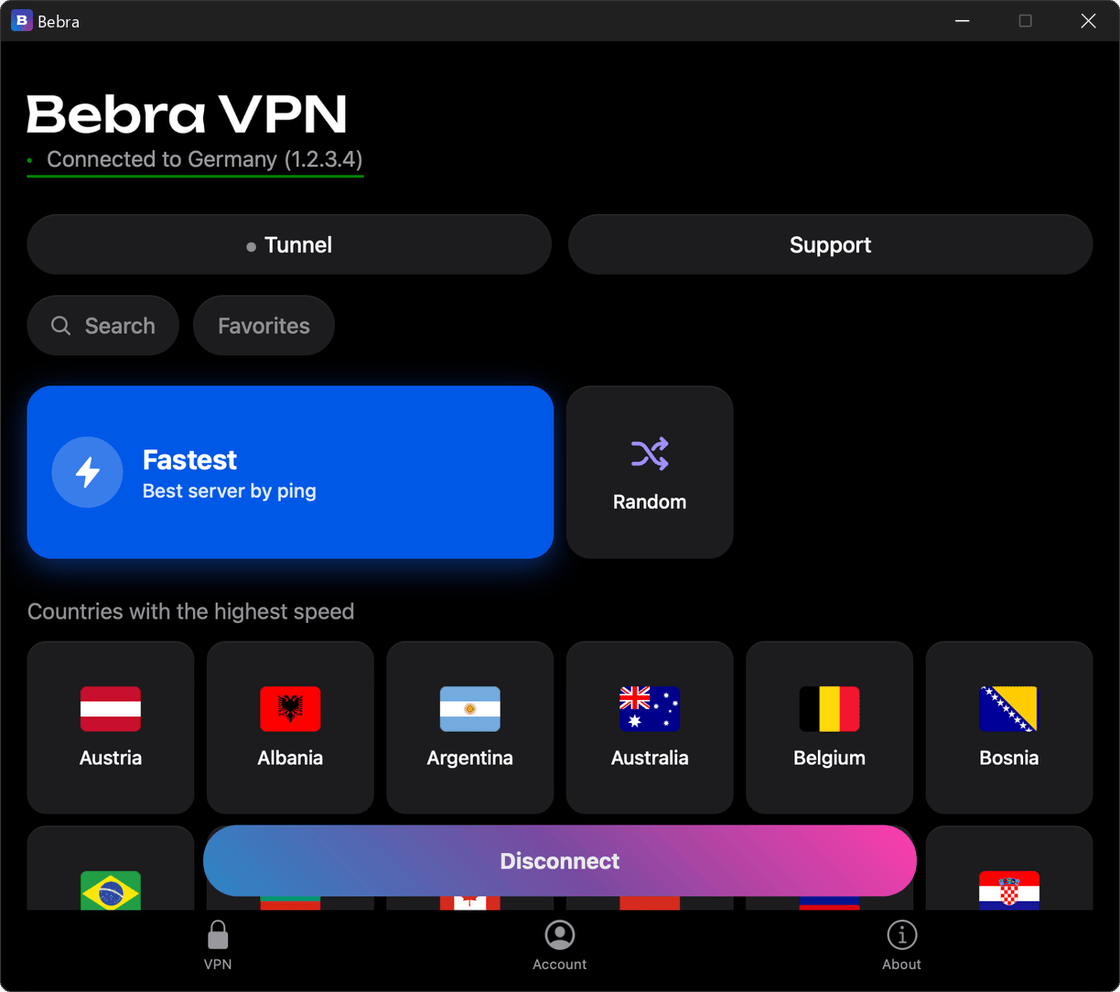
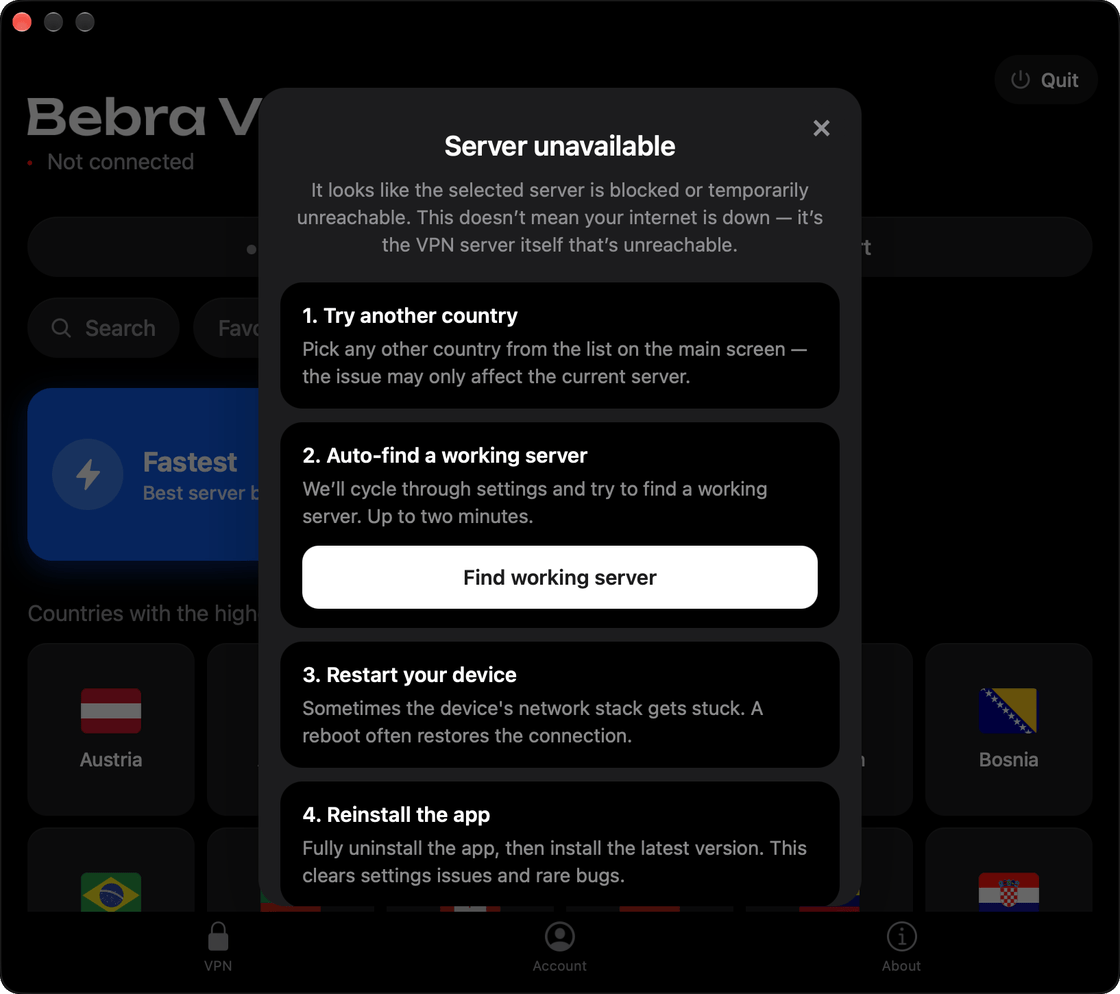
    The first time you open it, the app will show Welcome! and automatically create an anonymous account for you: you don’t need to register. Then the home screen with the list of countries will open. If the setup takes too long, the app will offer to find a working mirror: click Automatic mirror selection.

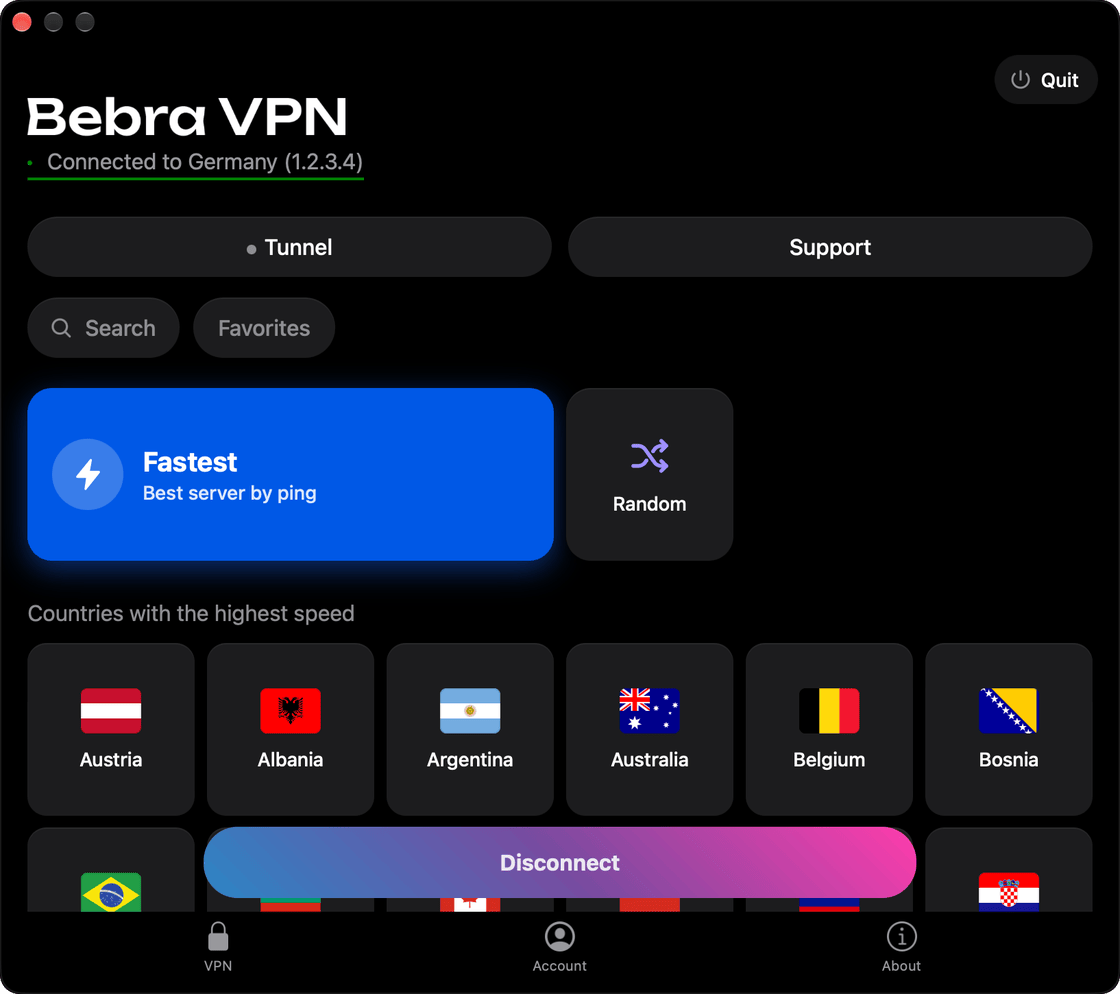
    Fastest connects you to the best server by ping, and Random to a random country.

  3. Website version: allow the system extension

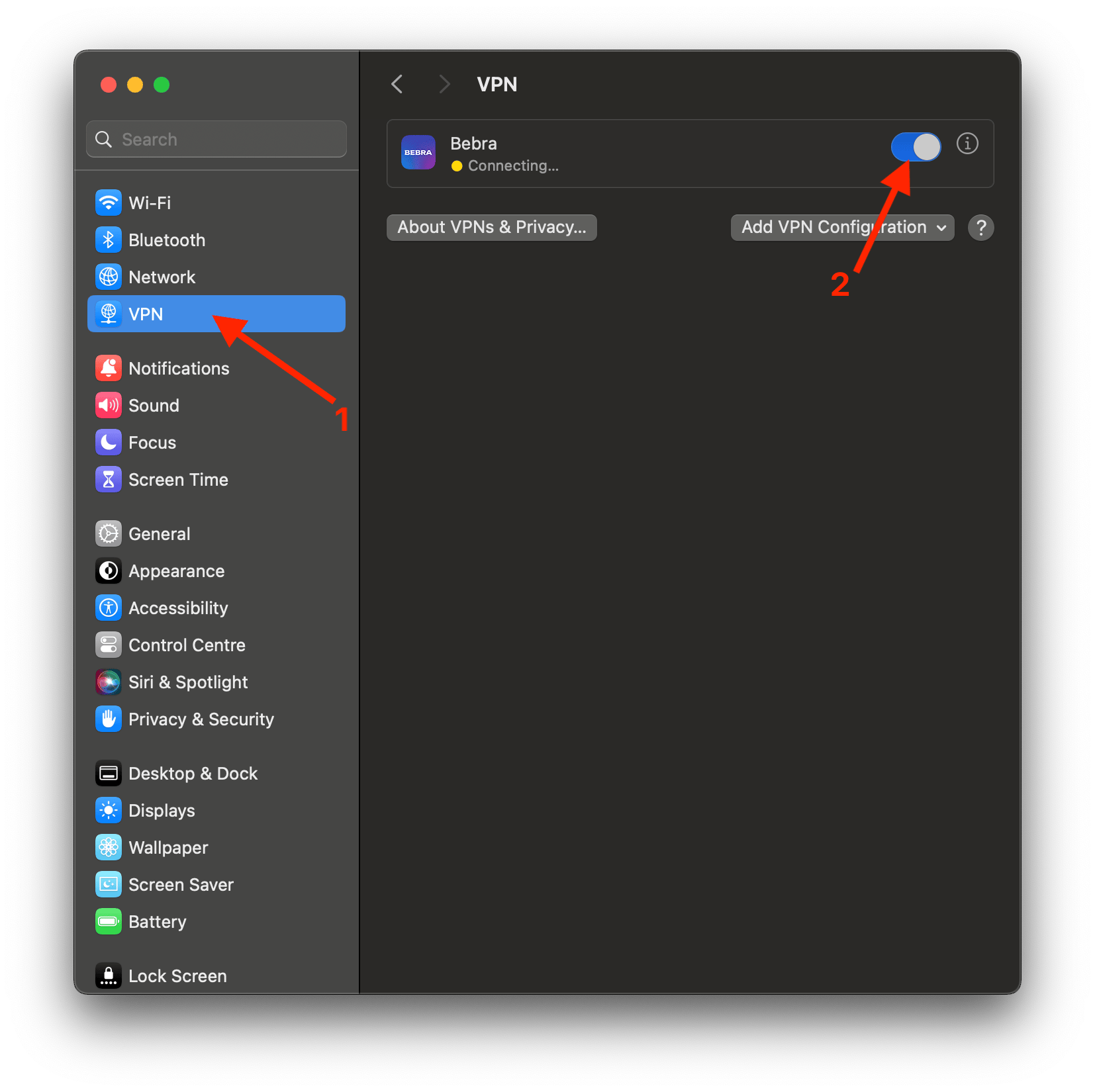
    The first time you launch it, the version from our website will ask you to allow its network system extension. Open System Settings → General → Login Items & Extensions → Network Extensions and turn on Bebra there. On macOS 13 and 14, open System Settings → Privacy & Security and click Allow; on macOS 12, open System Preferences → Security & Privacy and click Allow.

    If Bebra shows the Allow the VPN system extension window, its Open Settings button takes you straight to the right section. If Bebra or macOS asks you to restart your Mac, restart it. The Mac App Store version doesn’t need this step.

  4. Already have a subscription? Sign in to your account

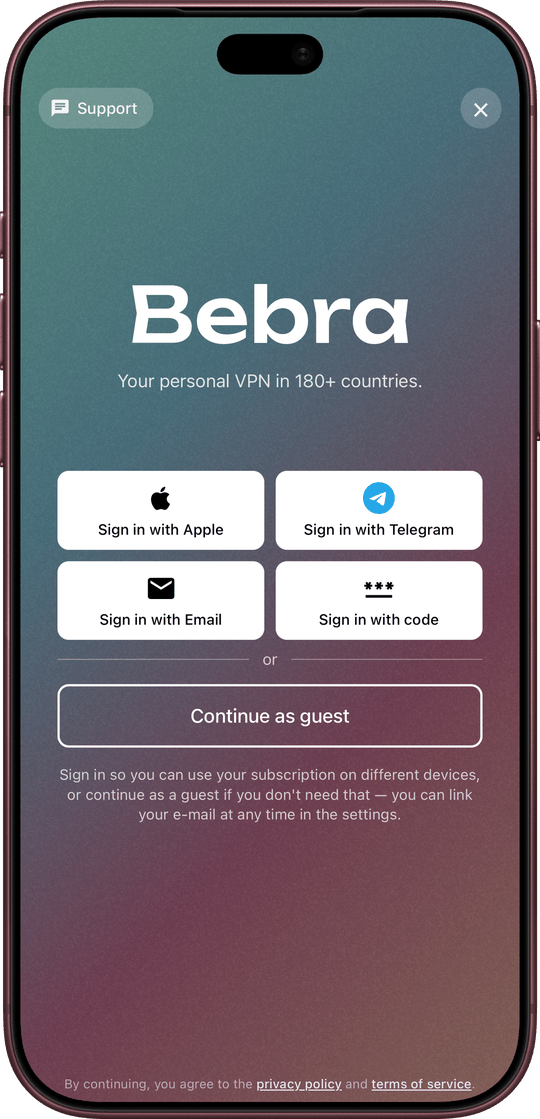
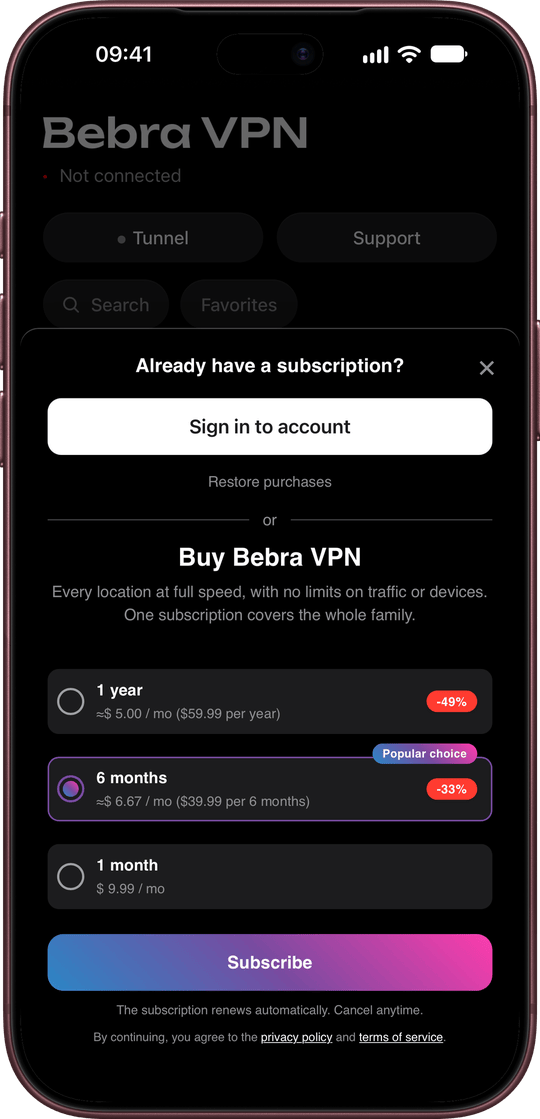
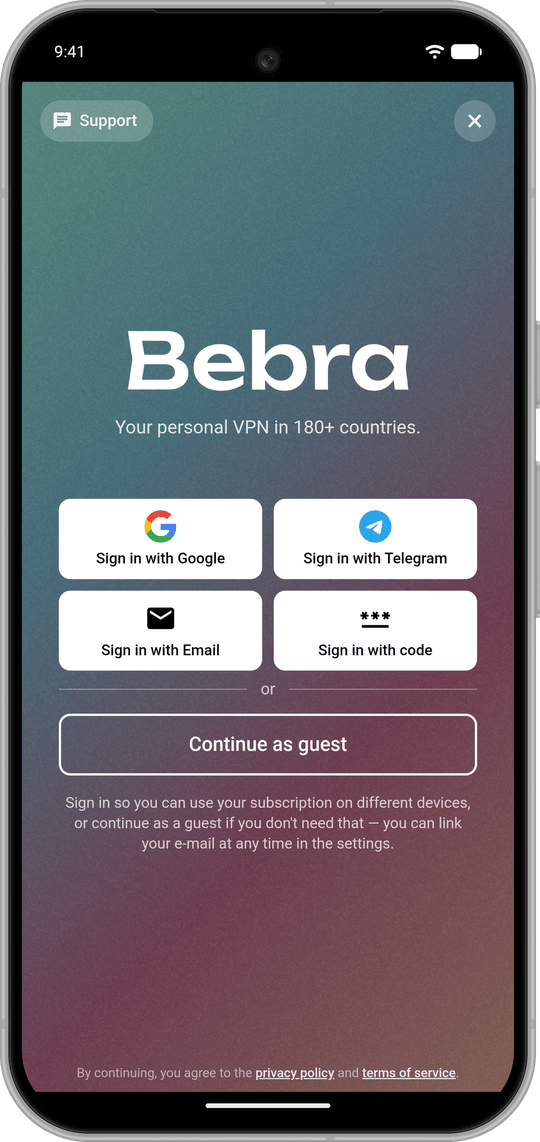
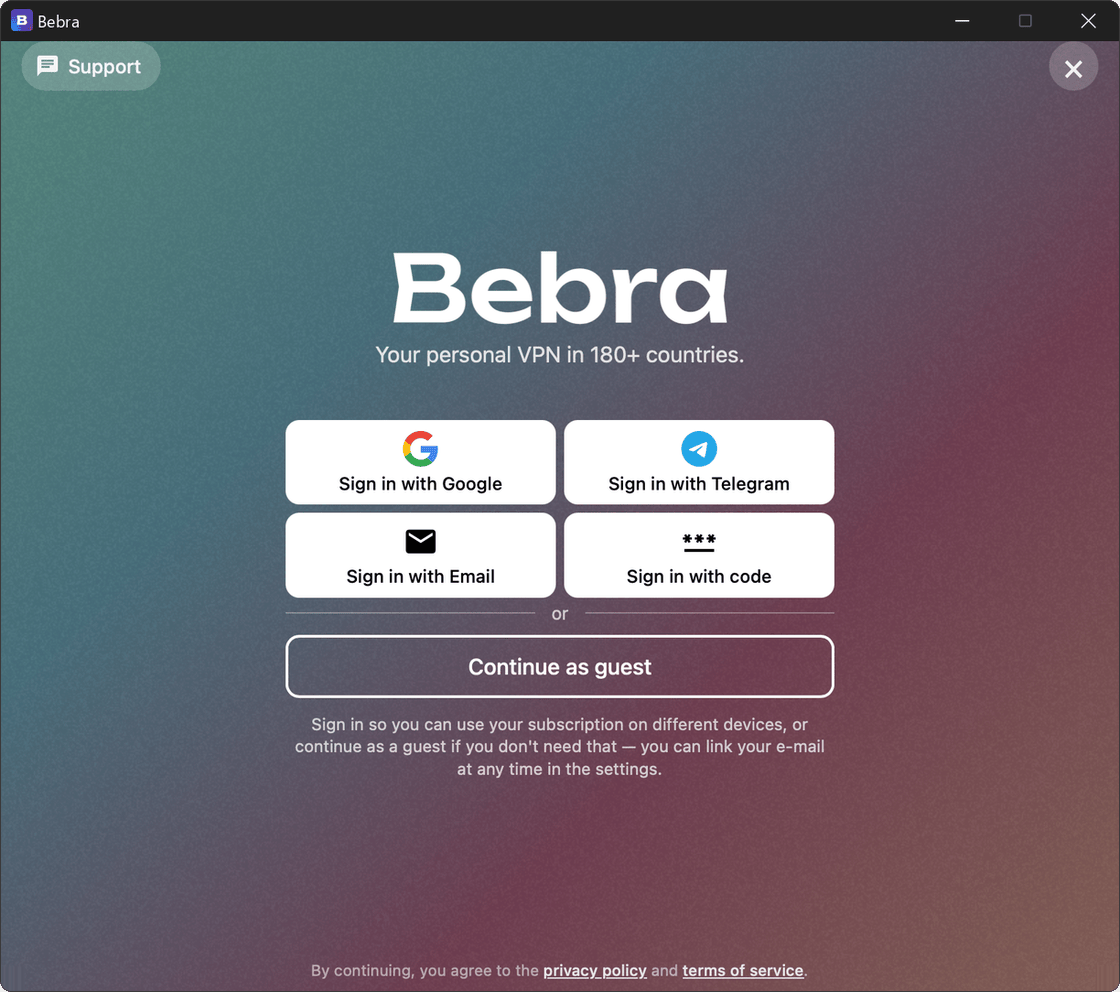
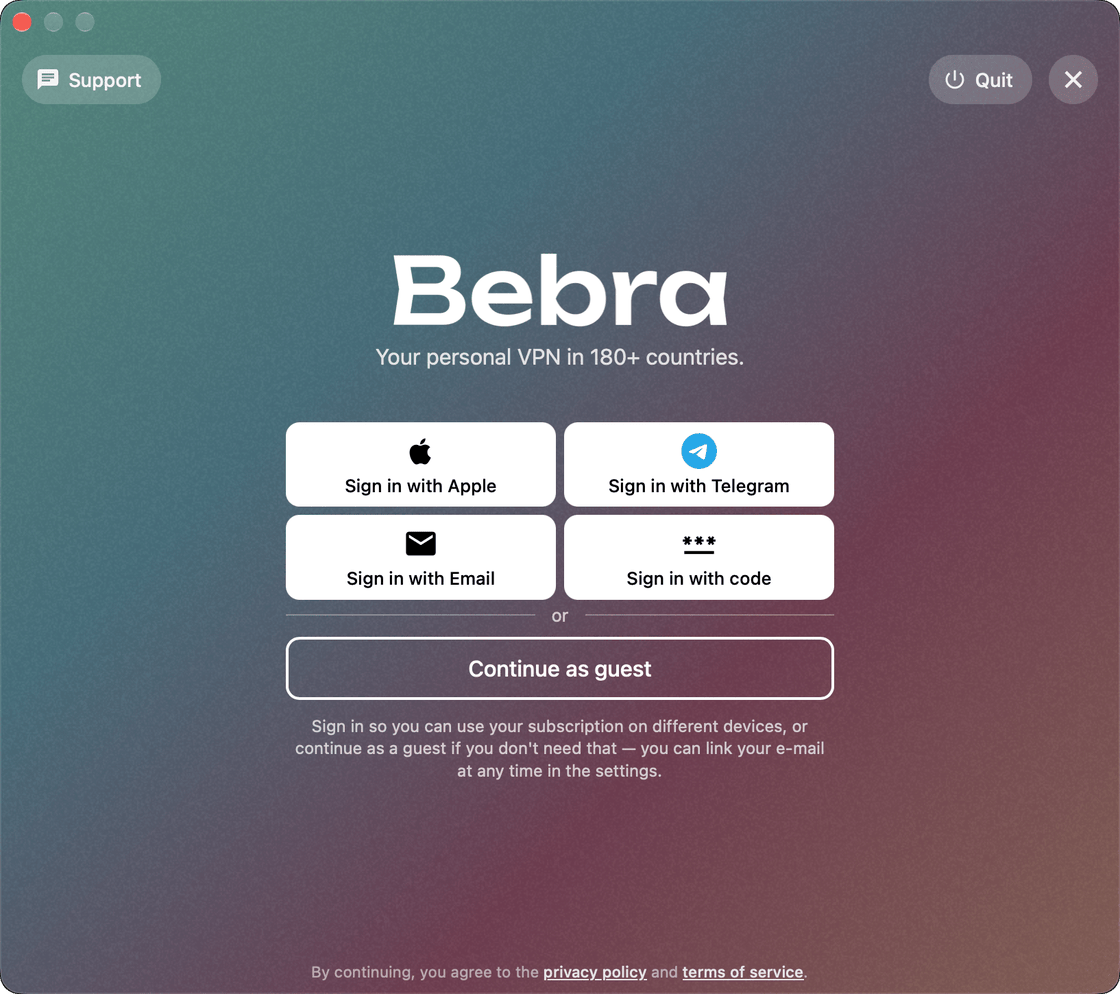
    If you’ve already paid for Bebra on the website or on another device, you don’t need a new subscription. Click any country, and in the purchase window that opens, click Sign in to account. Sign in the same way as before: Sign in with Apple (in the website version, it opens in your browser), Sign in with Telegram, Sign in with Email (enter the e-mail your subscription is linked to) or Sign in with code.

    The sign-in code is shown in Bebra on the device where your subscription already works: Account → Sign in on another device. If you change your mind, click Continue as guest.

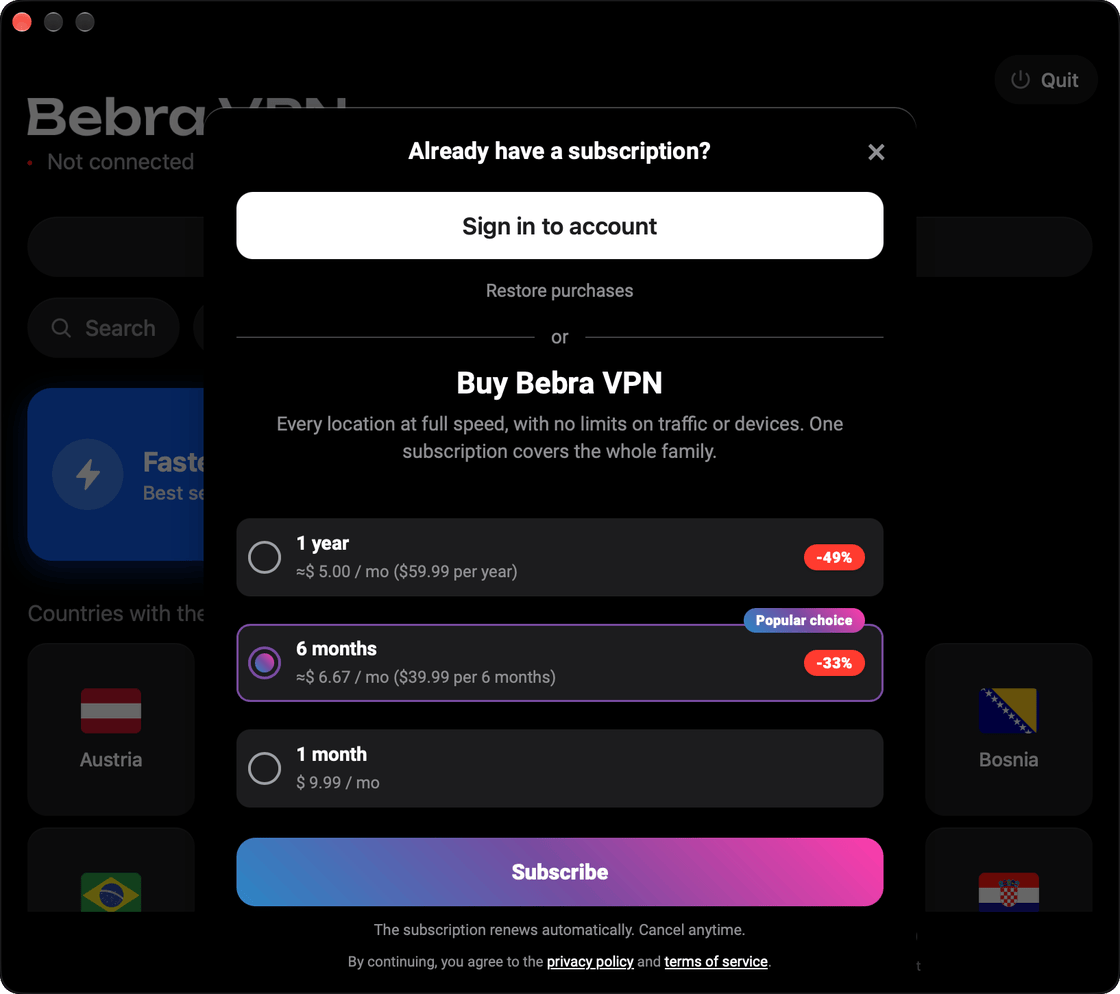
    In the Mac App Store version, if you subscribed in the App Store with the same Apple ID, click Restore purchases in the purchase window. If that purchase is linked to an account with an e-mail or Telegram, Bebra will tell you which account to sign in to: sign in to it as described above.

  5. Website version: subscribe

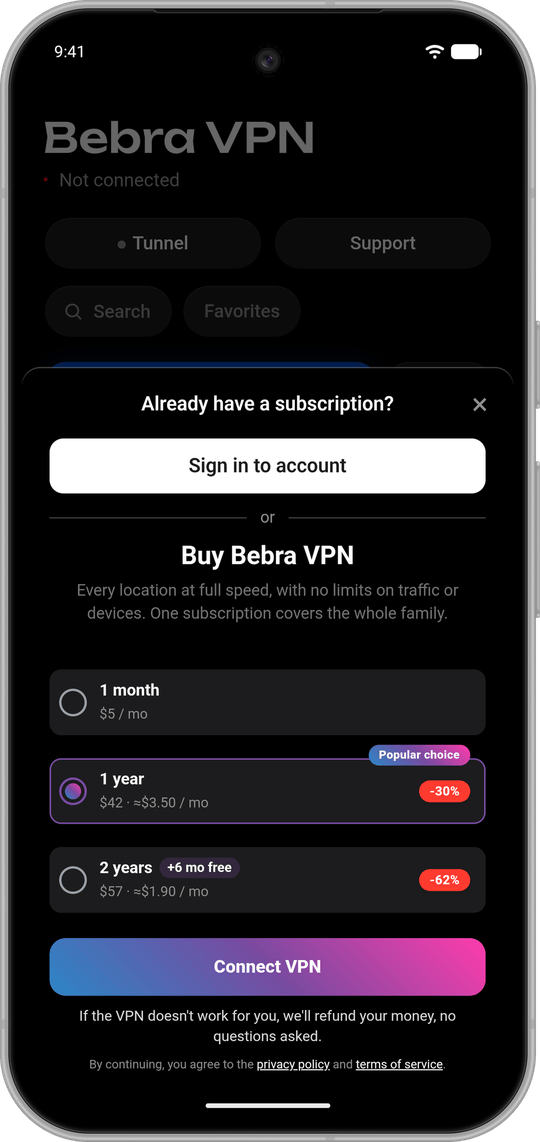
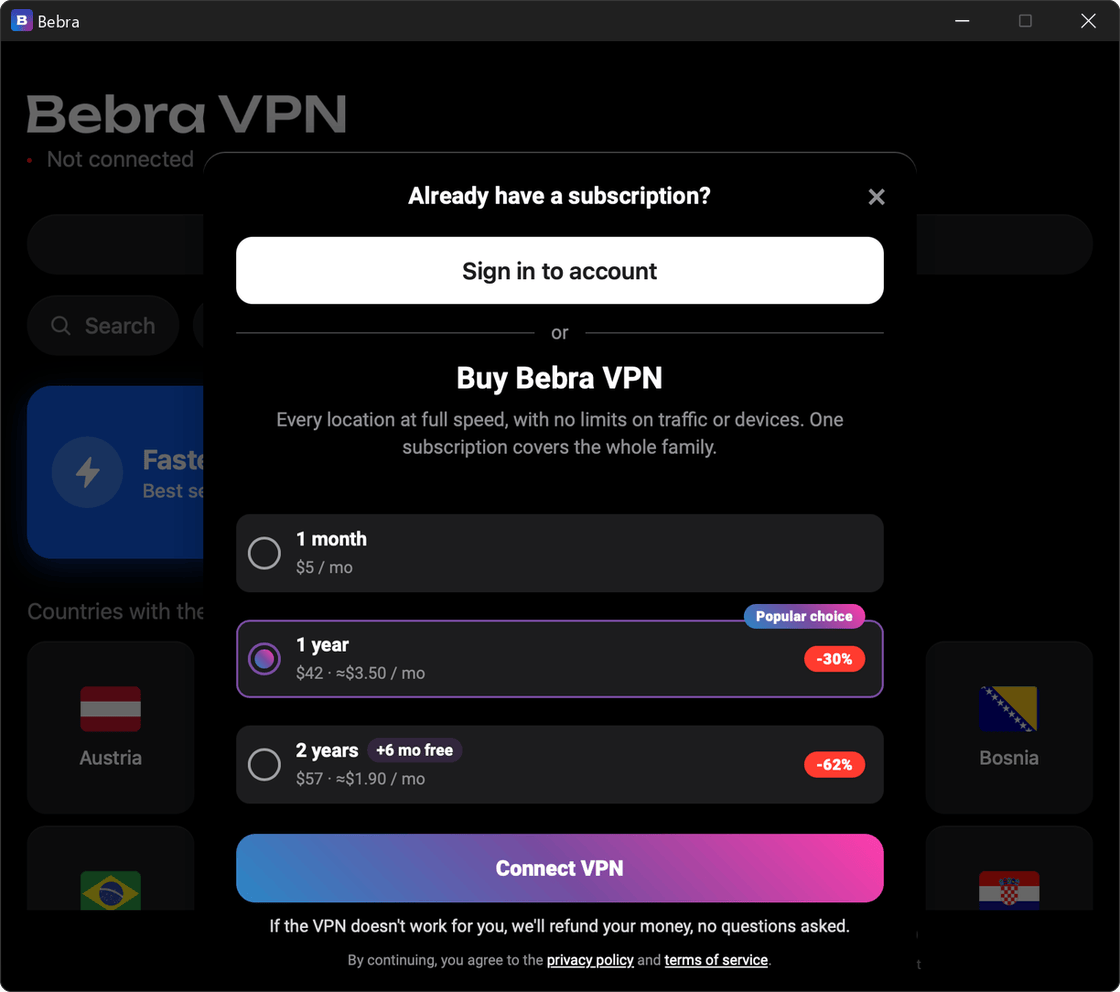
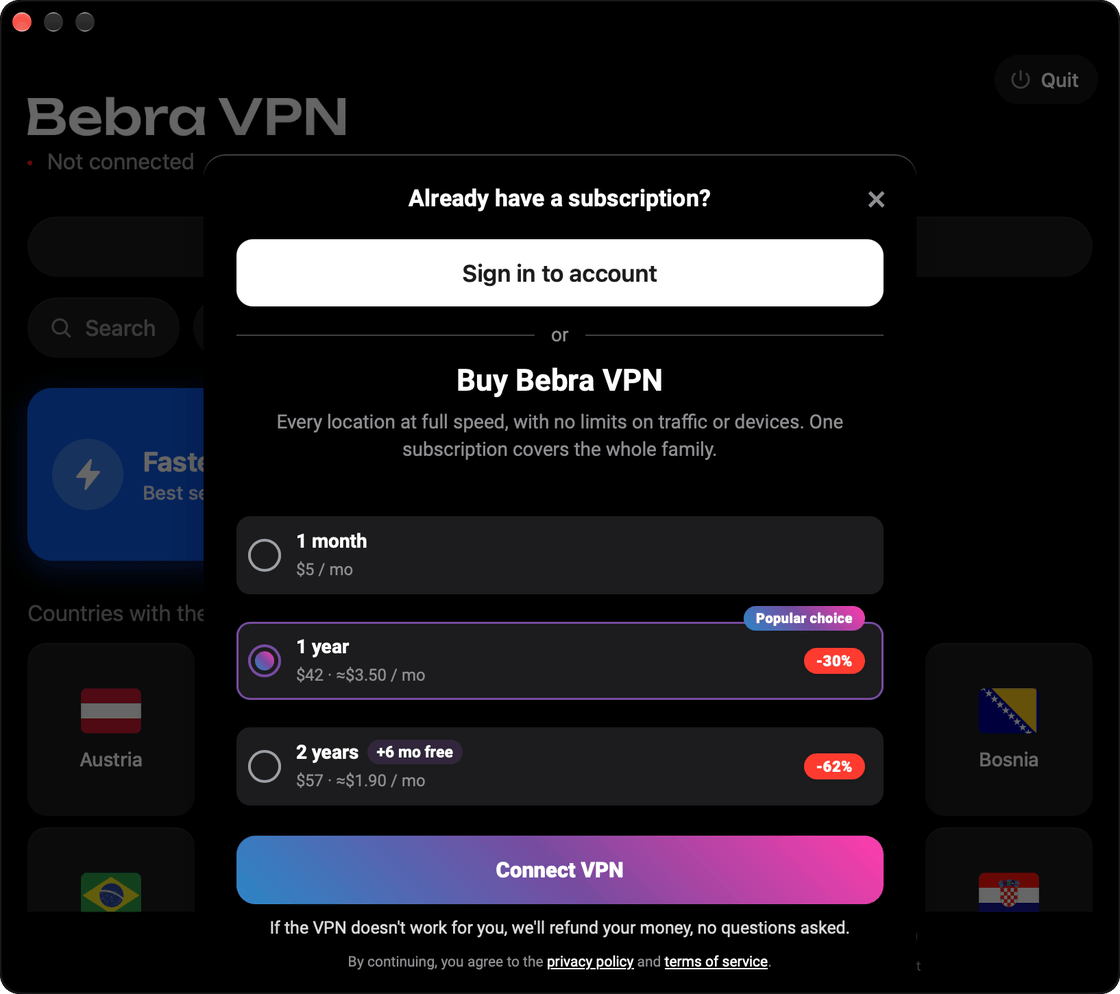
    Click any country. If you don’t have a subscription yet, the Buy Bebra VPN window will open: choose a plan and click Connect VPN. The payment page on our website will open, and you can pay with a Russian card there.

    You don’t need to enter your e-mail: the payment will be linked to your account automatically, and the subscription will appear in the app.

  6. Mac App Store version: subscribe

    Click any country. If you don’t have a subscription yet, the Buy Bebra VPN window will open: choose a plan and click Subscribe (if the App Store offers a free trial, the button says Try 3 days free). You pay through the App Store, and then Bebra will automatically start connecting to the country you chose.

    If the App Store doesn’t accept your card, for example a Russian one, pay for your subscription on our website https://bebra.cc. When you pay, enter the e-mail shown in the Account section of the app: click Copy next to it. If your account is anonymous, this is a service address made of letters and numbers: enter exactly that one. After you pay, the subscription will appear in the app by itself.

  7. Allow Bebra to add a VPN

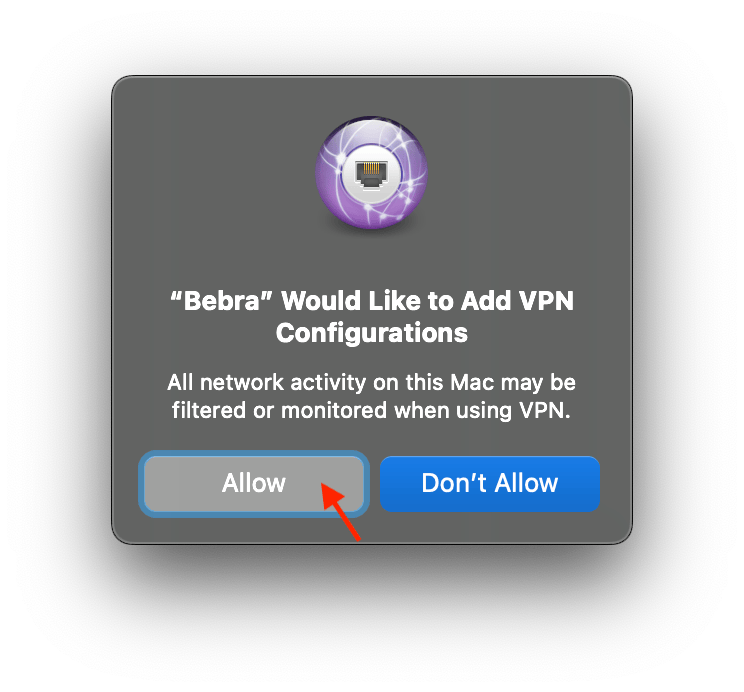
    The first time you connect, macOS will ask whether Bebra may add VPN configurations. Click Allow.

  8. Done

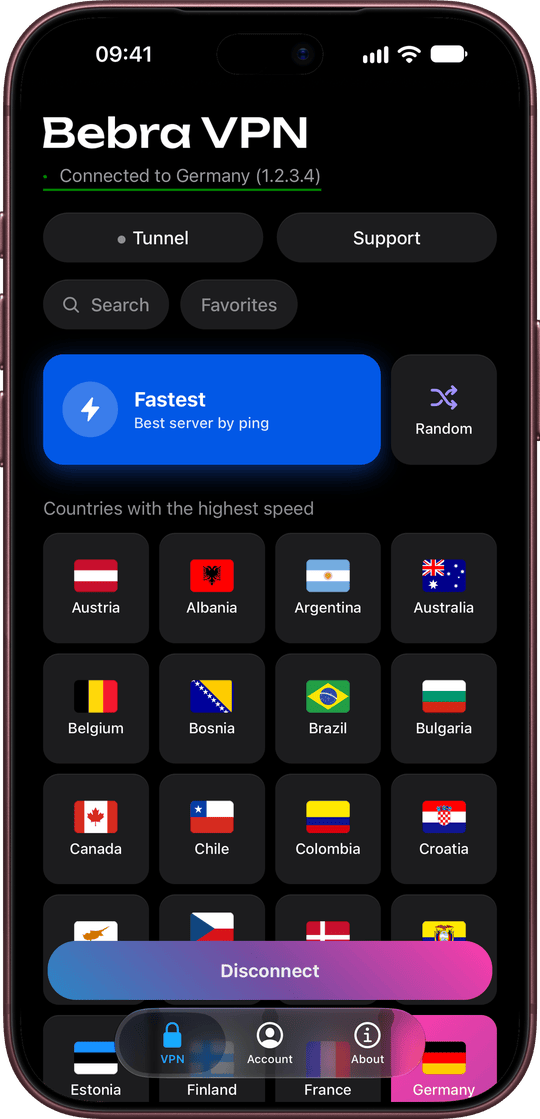
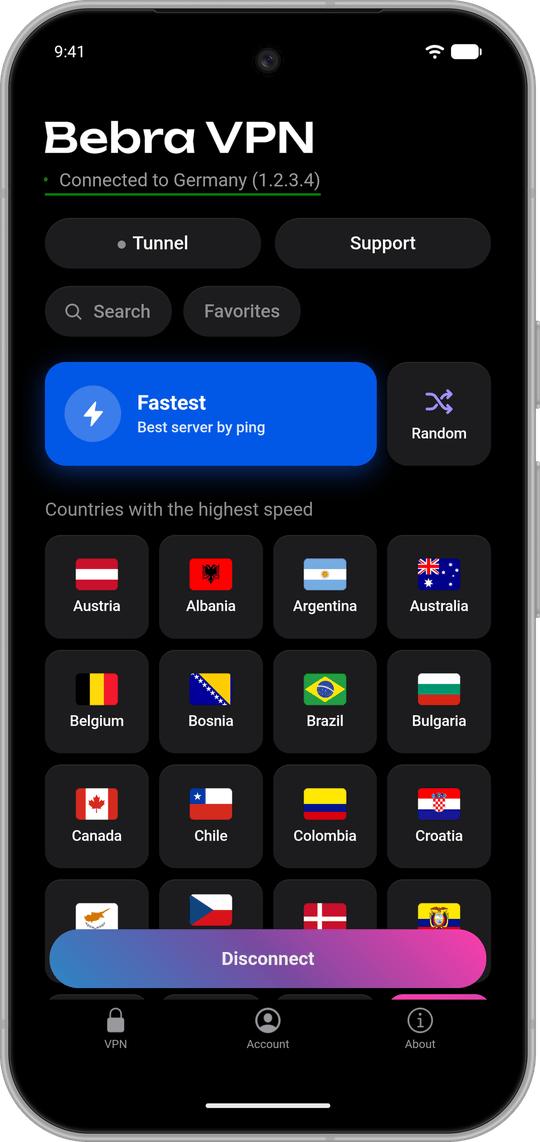
    At the top you’ll see Connected to and the name of the country: your Mac is connected to the VPN, and your connection is protected.

    To disconnect, click Disconnect at the bottom of the window or click the country you’re connected to once more.

  9. Quick access

    The Bebra icon will appear in the menu bar at the top of the screen. It’s a handy way to open the app.

Contact form

Describe your question — we will reply to the email you provide. Support is online 24/7

Please enter a valid email
Please write a message